On this page
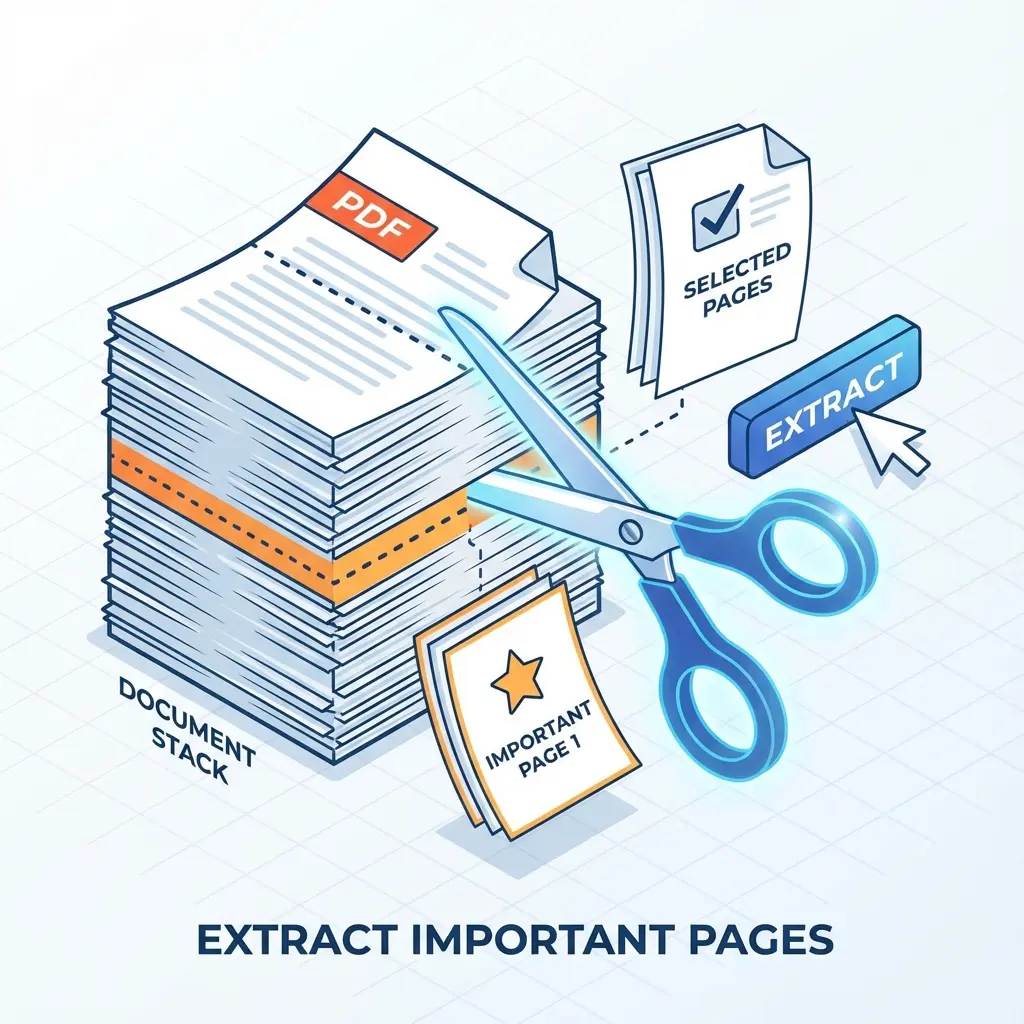
This happens every exam season. The board releases a Result Gazette or Center List PDF. It has 500 pages. Your name is on Page 42.
You need to print only Page 42. If you send the full file to the printer, he might print all 500 pages ($$$). If you take a screenshot, the text gets blurry and looks fake.
The Solution: Use the Split PDF Tool to cut out exactly the page you want.
✂️ Precision Cutting
Unlike "Print to PDF", our Split tool extracts the original vector page. This means the text stays 100% sharp, zooming works, and it is indistinguishable from the original.
Cheat Sheet: What do you need?
| I want to... | Action in Tool | Use Case |
|---|---|---|
| Get 1 Page | Click Page 42 -> Split | Admit Cards / Results |
| Get Range | Select Pages 10-15 -> Split | One Chapter from Book |
| Remove Page | Select All except Page 1 | Remove Cover Page |
How to Extract Your Page
- Open Tool: Go to Split PDF Tool.
- Upload: Load the massive PDF file.
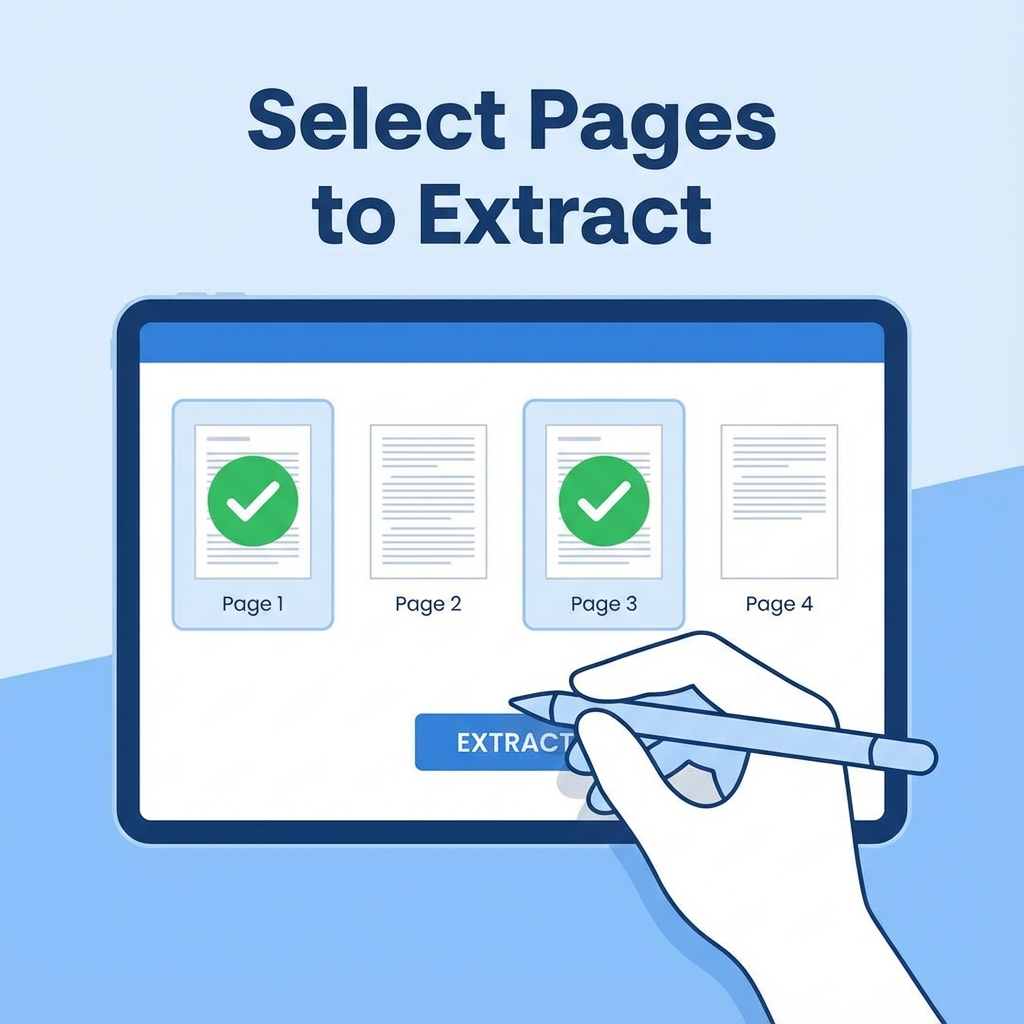
- Select: The tool will show thumbnails of every page.
- Click on the page you want (e.g., Page 42).
- You can select multiple pages too (e.g., Page 42 and 43).
- Extract: Click "Split PDF".
- Result: A new, tiny PDF containing only your selected page.
Common Scenarios
- Bank Statements: Extracting only "March" month from a yearly statement.
- Specific Pages: Enter "2, 5, 8" to get just those three pages.
- Range: Enter "1-5" to get the first five pages.
 How to Extract Specific Pages from PDF Guide
FAQ: Splitting PDFs
Q: Does quality reduce? A: No. We extract the page exactly as it is. It's not a screenshot. It's the original vector page.
Q: Can I remove ads? A: Yes. Select all pages EXCEPT the one with ads, then click Split. You get a clean PDF.
Related Tools:
- Extracted too many pages? Merge them back.
- File still too big? Compress it.
Useful Tools
DocSet Team
Experts in Document Processing & Government Exam Specifications. We research official notifications from SSC, UPSC, IBPS, and other bodies to provide accurate, up-to-date image resizing and document preparation guidelines.