On this page
Applying for a PAN Card (NSDL or UTI)? You fill the whole form, pay the fee, and then get stuck at the Photo & Signature upload.
The screen shows a confusing error:
"Image dimensions should be 213x213 pixels and 300 DPI."
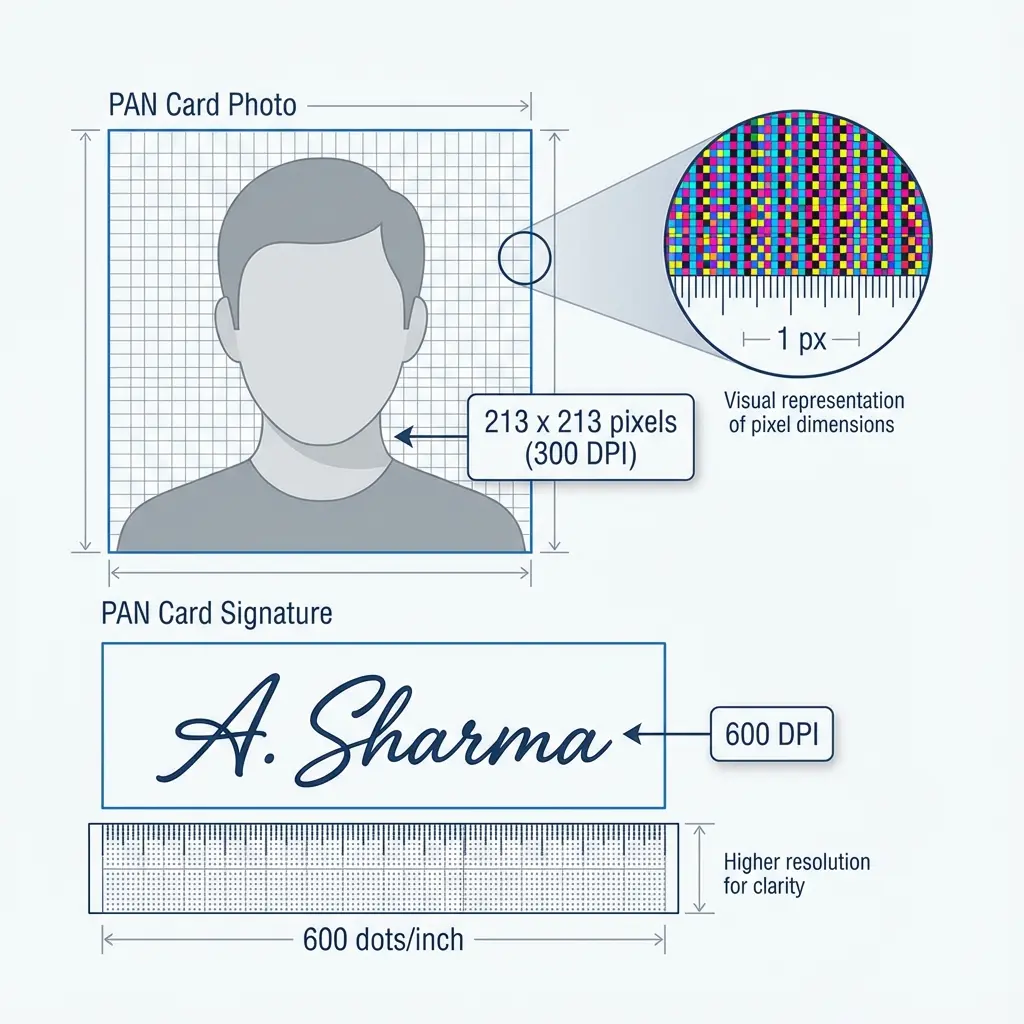
Unlike other forms that accept any "Passport Size photo", NSDL and UTI are extremely strict. If your photo is 214 pixels wide, it fails. If your signature is not exactly 600 DPI, it gets rejected.
📏 The Math: 213 vs 2.5cm
Officially, they ask for 2.5 x 3.5 cm. But in the digital world (pixels), at 300 DPI resolution, this translates to exactly 213 x 213 pixels. Don't worry about the math, our tool handles it.
Cheat Sheet: PAN Card Specs (NSDL & UTI)
| Requirement | Photo Rules | Signature Rules |
|---|---|---|
| Dimensions | 213 x 213 Pixels | 444 x 205 Pixels (flexible) |
| DPI (Quality) | 300 DPI | 600 DPI (Crucial) |
| File Size | Under 30 KB | Under 60 KB |
| Format | JPEG / JPG | JPEG / JPG |
| Background | White | White Paper + Black Ink |
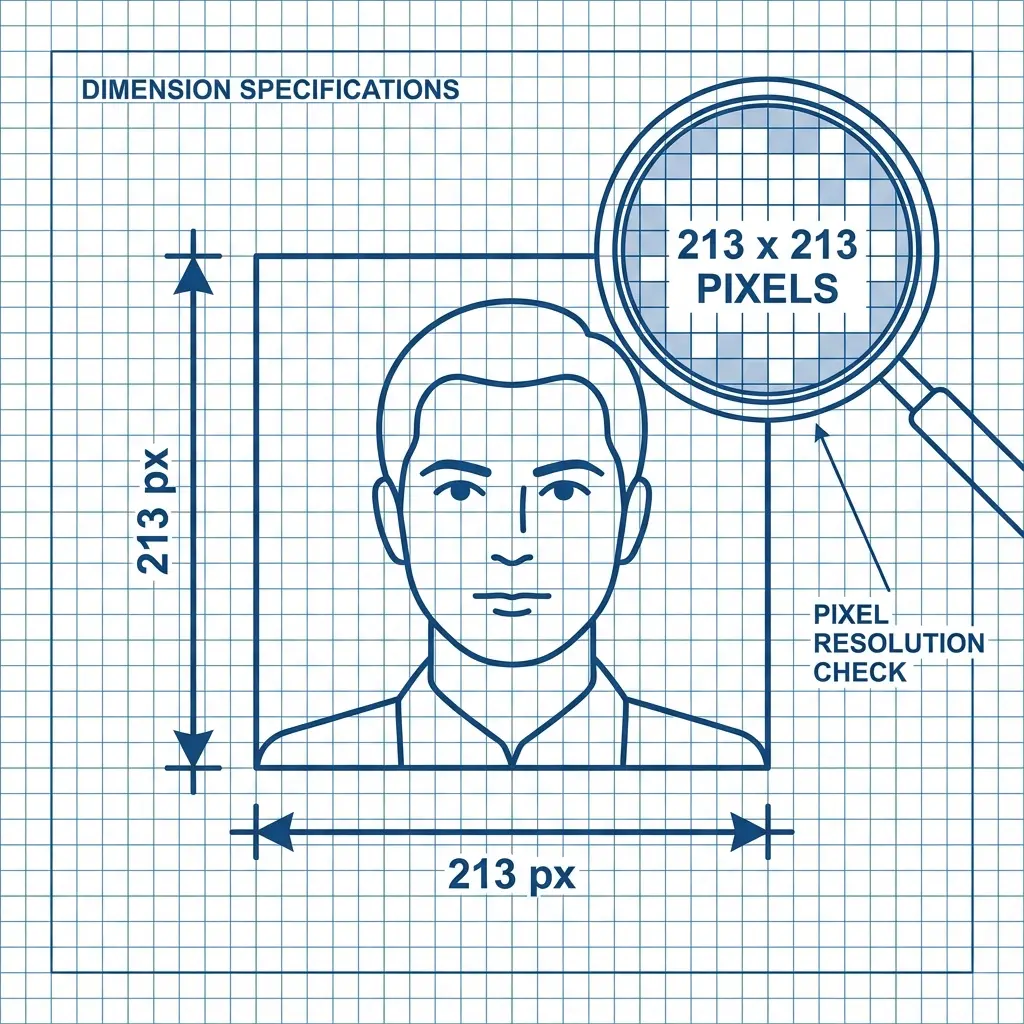 NSDL PAN Card Photo Specs: 213x213 Pixels @ 300 DPI
How to Resize Properly (300 DPI)
Normal phone cropping apps change the size but ruin the DPI metadata. NSDL checks this metadata.
- Open the Tool: Go to the PAN Resizer Tool.
- Upload: Select your normal photo.
- Process: The tool automatically sets the metadata to 300 DPI and dimensions to exactly 213x213 pixels.
- Download: This file is now NSDL compliant.
Important Tip for Signature
For the signature, use a Black Pen on a plain white paper.
- Do NOT use a Blue pen. NSDL scanners prefer high-contrast Black ink.
- If you use Blue, ensure you select "High Contrast" mode in scanning settings.
FAQ: Common Doubts
Q: Why does the NSDL portal show "Dimension Error" even if the size is small? A: NSDL checks for exact pixel dimensions (213x213). Even if your photo is small (e.g., 20KB), if the dimensions are 200x200, it will fail. Our tool fixes this instantly.
Q: Can I use a Blue Ink signature? A: While technically allowed by some, NSDL scanners are calibrated for Black Ink independent of the background. Blue ink often fades or blends during the scanning process. Black Ink is the safest choice for 100% acceptance.
Q: What is DPI and why does it matter? A: DPI (Dots Per Inch) determines the print quality. A 600 DPI signature ensures that when printed on the physical card, your signature looks sharp and not pixelated. Normal resizing apps destroy this DPI metadata.
Useful Tools
DocSet Team
Experts in Document Processing & Government Exam Specifications. We research official notifications from SSC, UPSC, IBPS, and other bodies to provide accurate, up-to-date image resizing and document preparation guidelines.