On this page
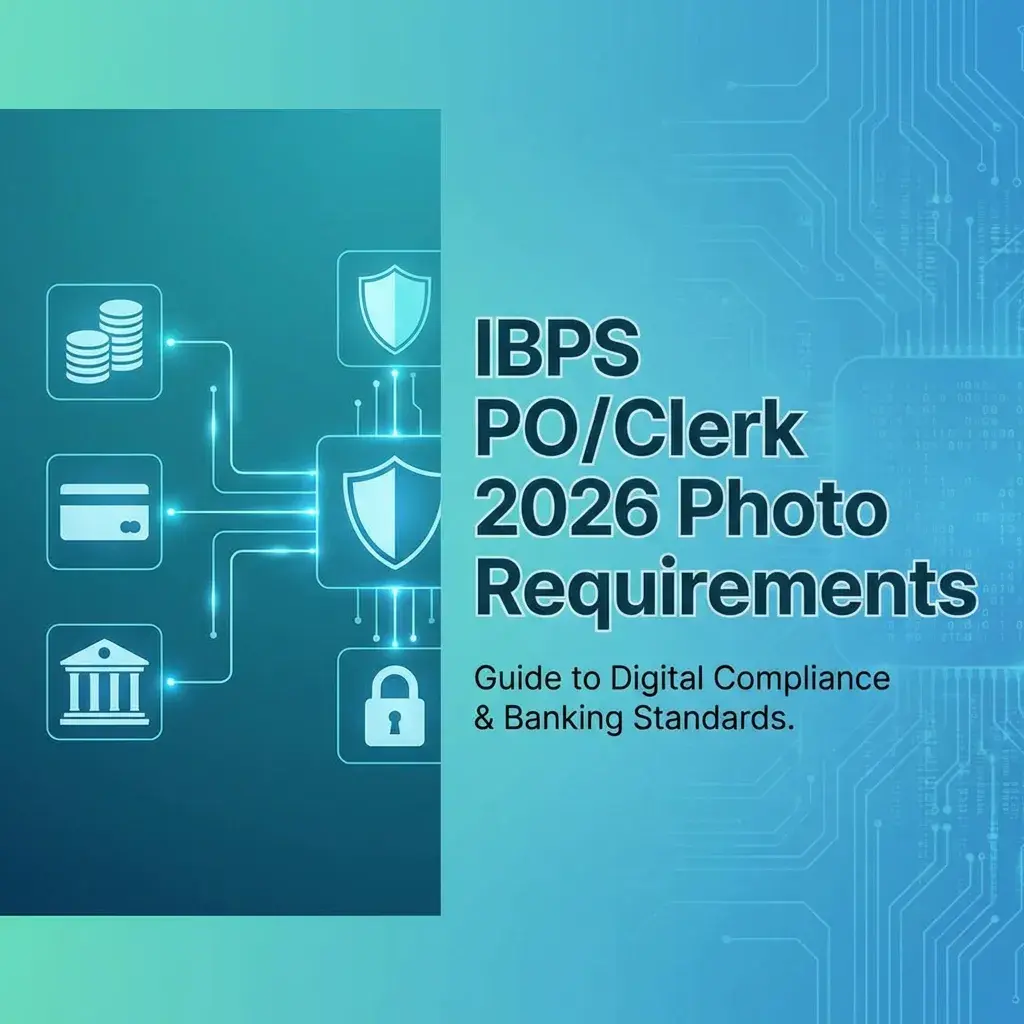
Quick Answer: For all IBPS exams (PO, Clerk, RRB, SO), the photo must be 20 KB to 50 KB (200x230 pixels) and the signature must be 10 KB to 20 KB (140x60 pixels). Format: JPG/JPEG only.
⚠️ Common Rejection Reason
Uploading a 3MB phone photo will cause "Upload Failed" error. IBPS has strict file size limits. Most rejections happen due to incorrect KB size, not dimensions.
IBPS Photo & Signature Requirements (All Exams)
Photo Specifications
- Dimensions: 200 pixels (Width) × 230 pixels (Height)
- File Size: 20 KB to 50 KB
- Format: JPG or JPEG only (PNG not allowed)
- Background: White or light-colored
- Recency: Taken within last 3 months
- Quality: Clear face, no pixelation
Signature Specifications
- Dimensions: 140 pixels (Width) × 60 pixels (Height)
- File Size: 10 KB to 20 KB
- Format: JPG or JPEG only
- Ink Color: Blue or Black ballpoint pen
- Quality: Clear, not shaky or blurred
Thumb Impression (If Required)
- Dimensions: 240 pixels × 240 pixels (square)
- File Size: 20 KB to 50 KB
- Format: JPG/JPEG
- Background: White paper
- Ink: Black or blue stamp pad
How to Resize for IBPS (Step-by-Step)
For Photo:
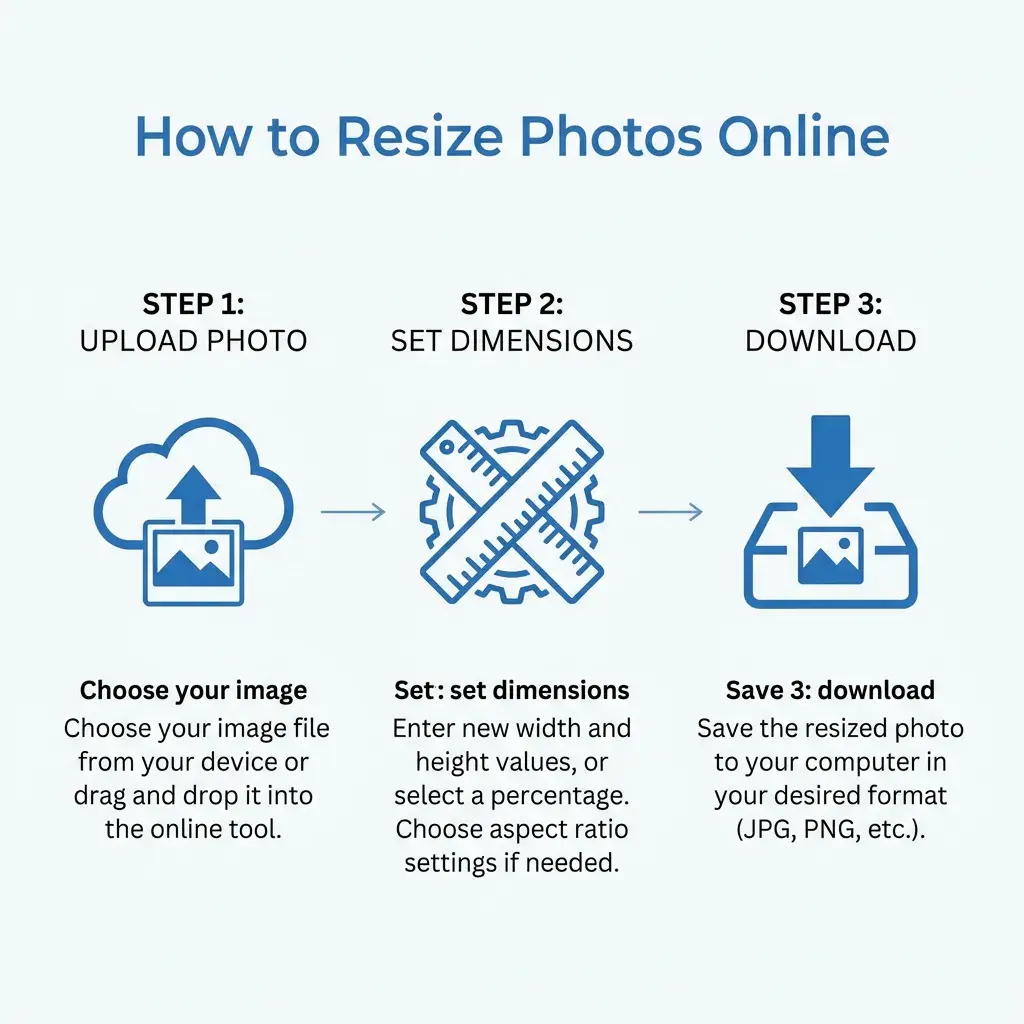
- Open DocSet IBPS Resizer
- Upload your passport-size photo
- Tool automatically resizes to:
- Width: 200px
- Height: 230px
- Max Size: 50KB
- Click Download
- Verify file size is between 20-50 KB
For Signature:
- Sign on white A4 paper with blue/black ballpoint pen
- Take a clear photo or scan
- Upload to DocSet IBPS tool
- Auto-resizes to 140×60 pixels, under 20KB
- Download and verify
💡 Pro Tip: Clean Your Signature First
If your signature photo has a grey background instead of white, use our Signature Cleaner before uploading to the IBPS portal.
Common IBPS Upload Errors & Fixes
Error 1: "Photo file size should be between 20KB to 50KB"
Cause: Your photo is too large (usually 2-5 MB from phone camera).
Solution: Use DocSet to compress it to exactly 50KB or less.
Error 2: "Invalid file format"
Cause: You uploaded a PNG, HEIC, or WebP file.
Solution: Convert to JPG first. Our tool auto-converts.
Error 3: "Image dimensions are incorrect"
Cause: Photo is not exactly 200×230 pixels.
Solution: Use our custom resizer with exact dimensions.
Photo Quality Tips for Banking Exams
✅ Do's:
- Use natural lighting (near a window)
- Wear formal or semi-formal attire
- Keep hair away from face
- Neutral expression (slight smile okay)
- Look directly at camera
❌ Don'ts:
- No selfies (maintain proper distance)
- No group photos (even if you crop yourself out)
- No filters or beautification
- No red-eye effect
- No shadows on face
Final Checklist Before Form Submission
- Photo is 200×230 pixels
- Photo file size is 20-50 KB
- Photo is in JPG/JPEG format (not PNG)
- Photo is recent (less than 3 months old)
- Signature is 140×60 pixels
- Signature file size is 10-20 KB
- Signature is in JPG/JPEG format
- Signature is clear and not shaky
Summary: IBPS has strict photo and signature requirements. Most application rejections happen due to incorrect file sizes, not dimensions. Always use a dedicated resizer tool to ensure your documents meet the exact specifications.
Quick Guide: How to Resize
Copy citation for academic or reference use:
DocSet Team
✓ VerifiedExperts in Document Processing & Government Exam Specifications. We research official notifications from SSC, UPSC, IBPS, and other bodies to provide accurate, up-to-date image resizing and document preparation guidelines.