On this page
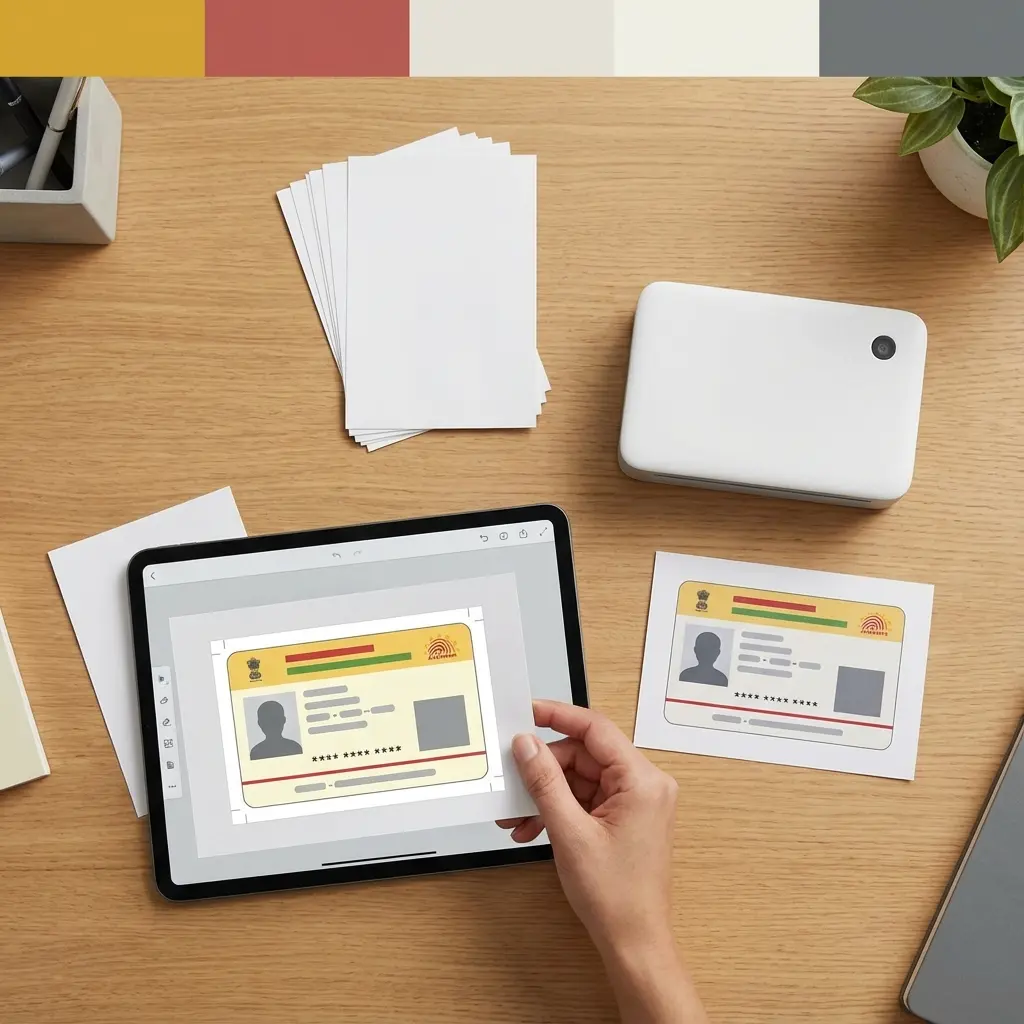
E-Mitra Shopkeepers, answer this: How much time do you spend printing one Aadhaar card?
- Open PDF (Enter Password)
- Take Snapshot / Crop Front
- Crop Back
- Open Photoshop > New 4x6 Sheet
- Drag & Drop > Resize > Align
- Total Time: 5 to 7 Minutes.
While you do this, 3 other customers are waiting. What if you could do this in 10 Seconds?
💡 Why 4x6 Inch Paper?
An A4 sheet costs ₹5 (Glossy). A 4x6 (4R) sheet costs ₹1.50 and fits an Aadhaar card perfectly with zero wastage. Swapping to 4x6 increases your profit margin by 200% on every print.
Cheat Sheet: The Smart Way
| Feature | Old Way (Photoshop) | New Way (DocSet Tool) |
|---|---|---|
| Passwords | Manual Entry | Auto-Handled |
| Cropping | Manual Select | Auto-Detection |
| Adjustment | Drag & Resize | Perfect Fit |
| Time | 5 Minutes | 10 Seconds |
How to use the Aadhaar Print Tool
This tool runs locally in your browser. It means your customer's Aadhaar PDF is NOT uploaded to any server. It is 100% safe.
- Open Tool: Go to the Aadhaar Print Tool.
- Upload: Select the E-Aadhaar PDF.
- Enter Password: Usually First 4 letters of Name + Birth Year (e.g.,
RAVI1995). - Select Paper: Choose "4x6 Inch".
- Download: You get a JPG image ready to print.
- Print: Right-click > Print > Select "4x6 Paper" in printer settings.
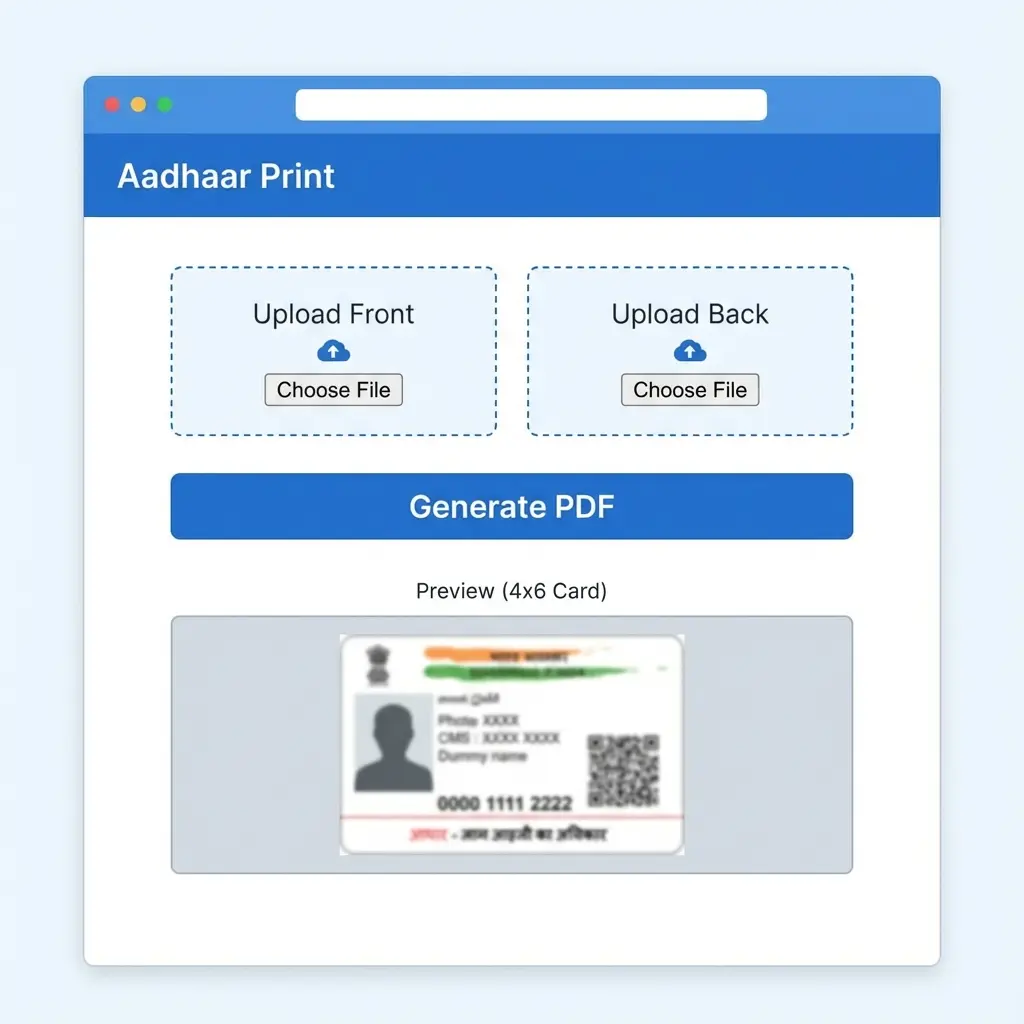 Aadhaar 4x6 Print Tool: Interface Walkthrough
Pro Tips for Quality
- Printer: Epson L805 or L3250 series works best.
- Paper: Use "High Glossy" 180 GSM.
- Settings: Always set "Photo Quality" to High. A blurry QR code means the Aadhaar is useless.
Troubleshooting Common Errors
- Print Cuts Off: Ensure your Printer Driver page size matches the physical paper (4x6). In Chrome, use "Fit to Paper" option.
- Password Error: Ensure the CAPS LOCK is on if the user name is in caps.
Useful Tools
Copy citation for academic or reference use:
DocSet Team
✓ VerifiedExperts in Document Processing & Government Exam Specifications. We research official notifications from SSC, UPSC, IBPS, and other bodies to provide accurate, up-to-date image resizing and document preparation guidelines.