On this page
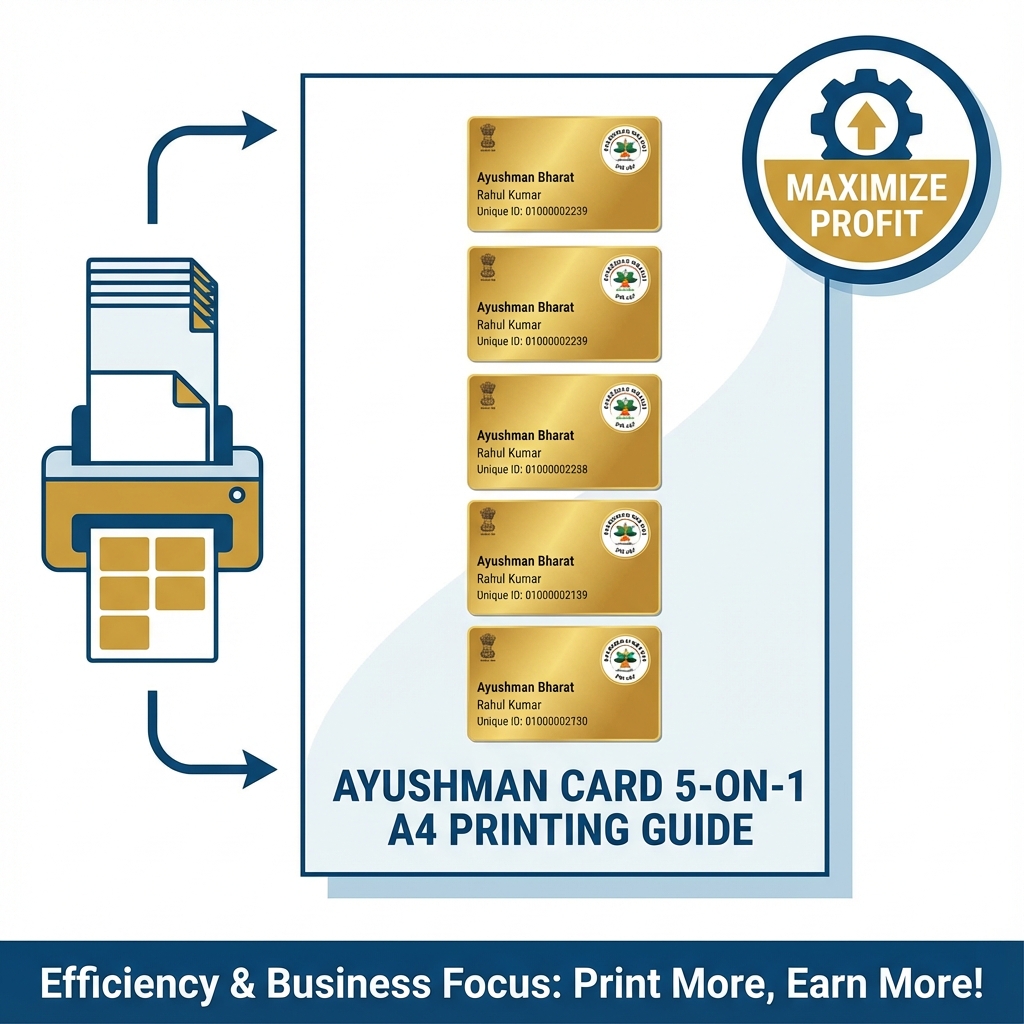
Printing ID cards is the "Bread and Butter" of any E-Mitra or CSC shop. But if you are printing one card per sheet, you are throwing money away.
- Cost of PVC Sheet: ₹15
- Cost if printing 1 card: ₹15 per card
- Cost if printing 5 cards: ₹3 per card
This guide shows you how to print Aadhaar, Ayushman, E-Shram, or PAN Cards in a batch of 5 on a single A4 sheet.
🖨️ For Inkjet Printers Only
This guide is for Epson L805 / L3250 users who use PVC Dragon Sheets (Thermal Lamination). If you use a direct card printer (Evolis/Magicard), you don't need this A4 alignment.
Cheat Sheet: Which Cards Can You Batch Print?
Our Universal ID Card Maker converts ANY card into the standard CR80 size (85.6mm x 54mm).
| Card Type | Original Format | Universal Tool Action |
|---|---|---|
| Ayushman Bharat | PDF / Image | Resizes to CR80 & Sets 5 on A4 |
| E-Shram | PDF / Image | Resizes to CR80 & Sets 5 on A4 |
| Aadhaar | Long PDF | Crops Smartly & Sets 5 on A4 |
| School/Office ID | Image | Sets 5 on A4 |
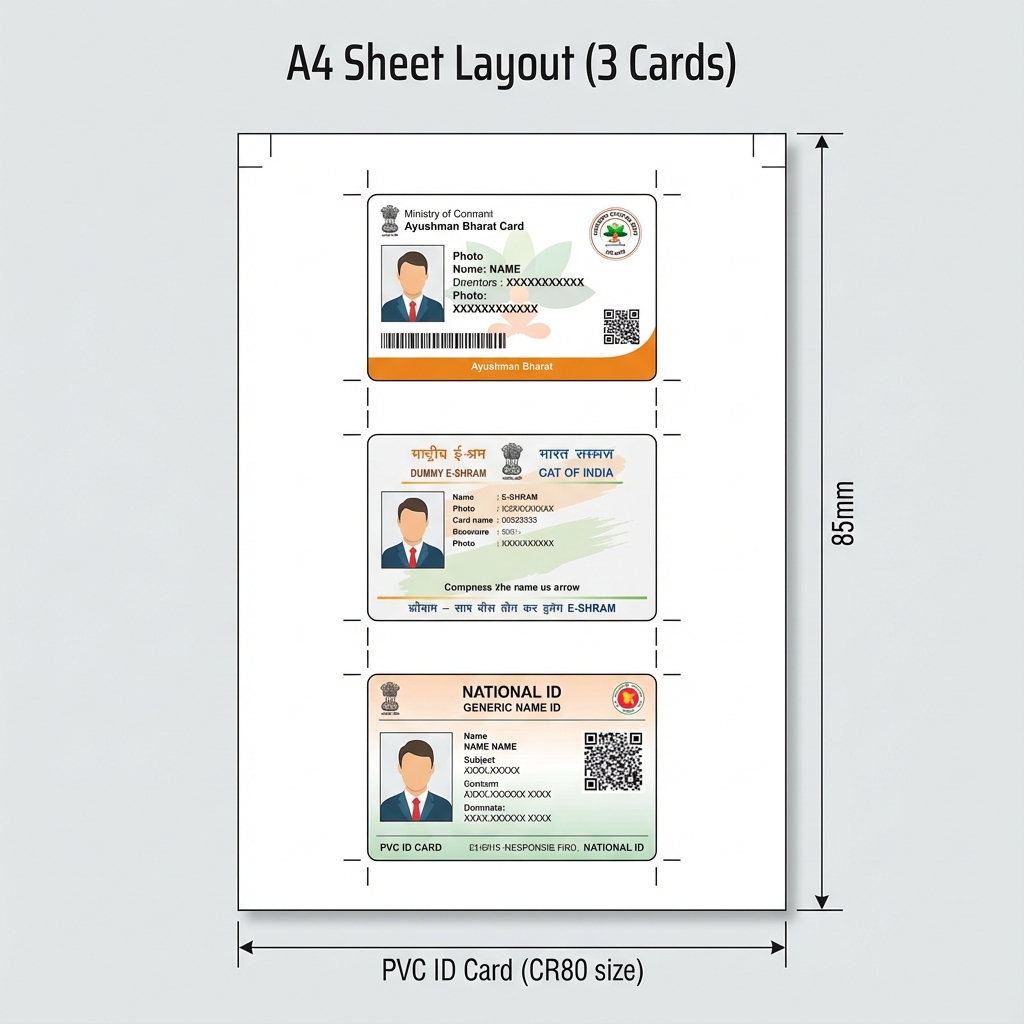 PVC Card Batch Printing Layout: 5 Cards per A4 Sheet
How to Set 5 Cards on One Page (Universal Method)
Stop using Photoshop to manually drag and drop layers.
- Open Tool: Go to Universal ID Card Maker.
- Upload Slot 1: Upload Front & Back images of the first card / customer.
- Add More: Click "Add Card" to upload images for the next customer. Repeat for up to 5 customers.
- Generate: Click "Generate A4".
- Print: The output image has 5 cards perfectly aligned with Crop Marks for easy cutting.
Technical Setup for Dragon Sheets
To get professional results (ATM-like heavy feel):
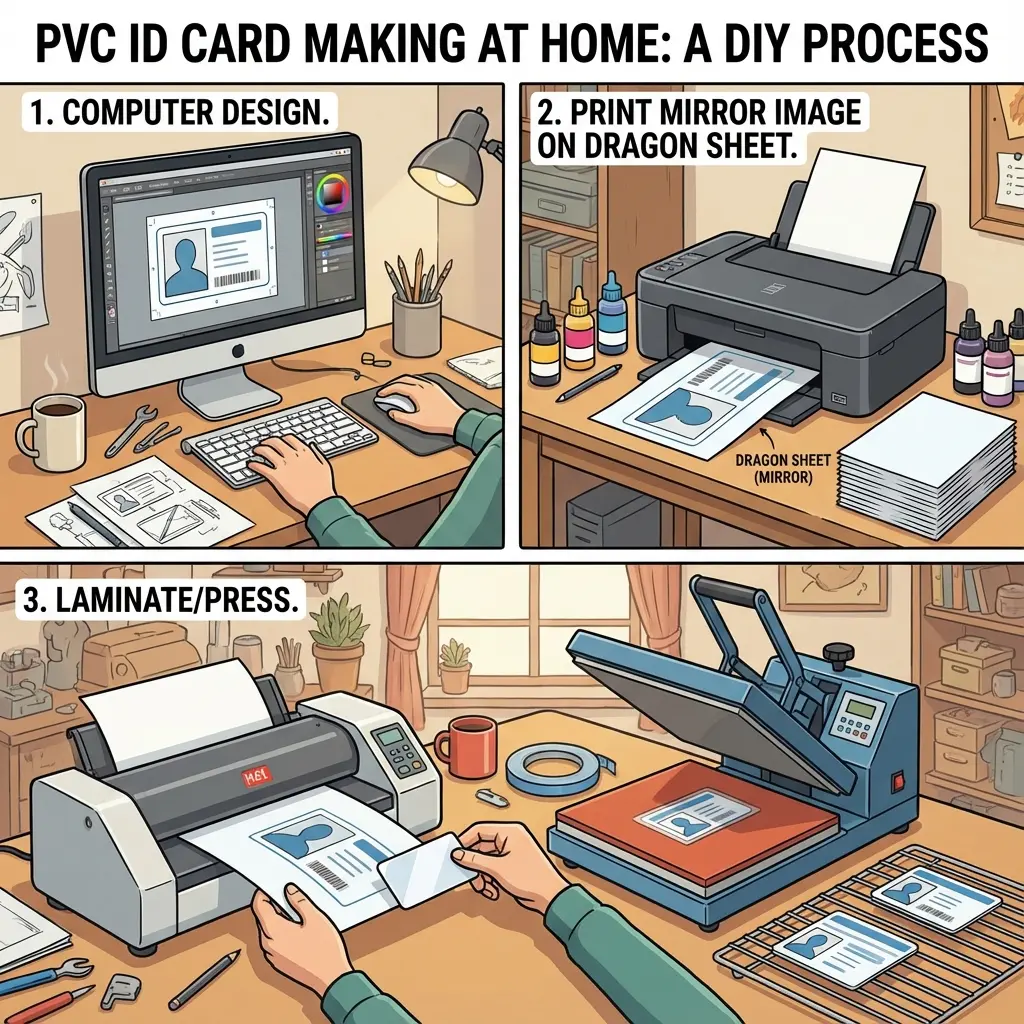
- Print: Use an Inkjet Printer (Epson L805 recommended).
- Paper Type: "Photo Glossy".
- Mode: Mirror Image (Crucial!).
- Fuse: Peel the printed layer, stick it to the thick PVC core sheet.
- Laminate: Pass the sandwiched sheet through a heated laminator (140°C - 160°C).
- Cut: Use a Die Cutter machine. Do not use scissors.
Troubleshooting Quality Problems
Problem: Ink is smudging / Not drying.
- Fix: You are likely printing on the wrong side of the sheet. Only one side is printable (sticky feeling). Also, ensure "Mirror Mode" is ON.
Problem: White edges after cutting.
- Fix: Our tool adds a "Bleed Area" (extra border). When cutting, place the blade slightly inside the color area.
Problem: Colors look dull.
- Fix: Increase "Brightness" by +10% in your printer settings or use the edit option in our tool before generating.
Useful Tools
DocSet Team
Experts in Document Processing & Government Exam Specifications. We research official notifications from SSC, UPSC, IBPS, and other bodies to provide accurate, up-to-date image resizing and document preparation guidelines.